🐧 Linux 101
New to Linux? Start here. No experience needed, no jargon without an explanation, and nobody will make you feel silly for asking.
👋 Welcome: Everybody on this site started at zero, and most of us broke something on the way. You will too. That is how it works, so every lesson tells you how to practise safely.
📚 The Lessons
Take them in order. Each one takes 15 to 20 minutes and builds on the last. Click a picture to open the lesson and its video:
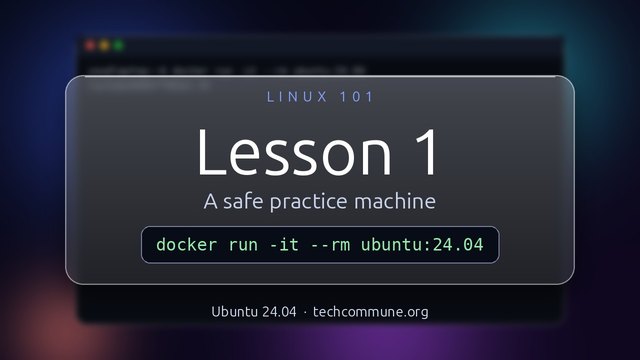 1. A safe practice machine
A disposable Ubuntu to break for free
1. A safe practice machine
A disposable Ubuntu to break for free
 2. The terminal
Where you are and how to move around
2. The terminal
Where you are and how to move around
 3. Files and folders
Make, copy, move and delete
3. Files and folders
Make, copy, move and delete
 4. Reading and searching text
cat, head, tail, grep and find
4. Reading and searching text
cat, head, tail, grep and find
 5. Users, permissions and sudo
Who may do what
5. Users, permissions and sudo
Who may do what
 6. Installing software with apt
apt: search, install and remove
6. Installing software with apt
apt: search, install and remove
 7. Processes
What is running and how to stop it
7. Processes
What is running and how to stop it
 8. Services and logs
Start, stop and read what your system says
8. Services and logs
Start, stop and read what your system says
 9. Disk, memory and network
df, free, ip, ping and ss
9. Disk, memory and network
df, free, ip, ping and ss
 10. Surviving a text editor
nano, and how to leave vi
10. Surviving a text editor
nano, and how to leave vi
 11. Pipes, redirection and scripts
The pipe, redirection and a first script
11. Pipes, redirection and scripts
The pipe, redirection and a first script
 12. Bonus: Rocky Linux
The Red Hat family
12. Bonus: Rocky Linux
The Red Hat family
🎬 Every lesson opens with a short video.
Why did the beginner bring a ladder to the terminal?
Because somebody told them to go up a directory: cd ..
Because somebody told them to go up a directory: cd ..
How These Lessons Work
- Ubuntu 24.04 LTS. Every command and every piece of output was run on it, so what you see here is what you should see on your screen. Other distributions are very similar, and the lessons say so when they differ. Lesson 12 is a bonus that covers the Red Hat family, tested on Rocky Linux 9.
- Safe by design. You practise on a machine you can throw away, not on your only computer.
- Real output. If the lesson shows a result, it was copied from a real run, not made up.
- Mistakes are expected. There are no stupid questions here, only commands you have not met yet.
Where to Go Next
Once the basics feel comfortable, the rest of the site opens up: Command Line Tips for the everyday tools, Sysadmin for running servers, and the community wiki, where you can share what you learned or ask for a lesson you wish existed.