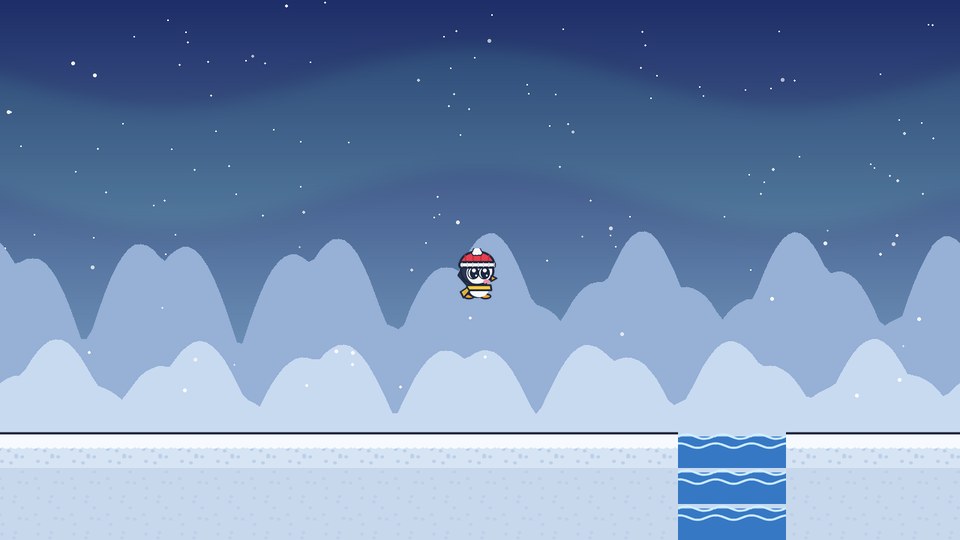
Press Space to jump: hold it for a high jump, tap it for a hop, and forgive the player a few frames either side.
▶Prefer to watch? This short video runs this page's main commands on a real Ubuntu 24.04 desktop, with on-screen captions and a synthetic voiceover (an AI voice trained on the author's own recording). Click to play, or watch it on YouTube.
Episode 4 ends with this: Space (or the up arrow) makes Tux jump. Hold the key and he goes about three and a half tiles high; tap it and he hops. Press jump a moment before landing and he jumps the moment he lands; walk off a ledge and you can still jump for a moment after. In the air he holds his flippers up.

You will need: your project from episode 3, or the starter files below.
You will make: a jump impulse, a variable jump height, coyote time, a jump buffer, and an input handler.
You will learn: why jumps are done with a speed and not a height, and two tricks that make controls feel fair.
Starter files: waddle-run-ep03.zip is where this episode begins, waddle-run-ep04.zip is where it ends. Both have the art folder.

The code of each step was run headless on Python 3.12 and pygame 2.5.2, and the numbers quoted below were measured by running it at 60 frames per second. Indentation matters in Python: the new lines on this page keep the indentation they need, so copy it exactly.
Where we start
$ cd waddle-run
$ source .venv/bin/activate
(.venv) $ python game.py

Tux runs, slides and waddles on a flat floor, and falls if he is dropped from above. He cannot get off the ground by himself yet.
Step 1: the jump
A jump is just a big upward speed at the moment of the press. Gravity then does the rest: it slows him down, he stops at the top, and he falls. The speed we choose decides the height. Make these changes:

Add this after line 43 of your file (FLOOR_Y = 12 * TILE)

JUMP_SPEED = 900
JUMP_CUT = 300  # let go of the key early and the jump is cut short
COYOTE = 0.10  # seconds you can still jump after walking off an edge
BUFFER = 0.10  # seconds a jump press is remembered before landing

- - -

Add this after line 120 of your file (self.walk = 0.0)

        self.coyote = 0.0
        self.buffer = 0.0

- - -

Add this after line 127 of your file (self.vy += GRAVITY * dt)

        if self.on_ground:
            self.coyote = COYOTE
        else:
            self.coyote -= dt
        self.buffer -= dt
        if self.buffer > 0 and self.coyote > 0:
            self.vy = -JUMP_SPEED
            self.buffer = self.coyote = 0.0
        if self.vy < -JUMP_CUT and not (keys[pygame.K_SPACE] or keys[pygame.K_UP]):
            self.vy = -JUMP_CUT

- - -

Add this after line 134 of your file (self.walk += abs(self.vx) * dt)

    def press_jump(self):
        self.buffer = BUFFER

- - -

Add this after line 153 of your file (self.tux = Tux(*self.start))

    def handle(self, event):
        if event.type == pygame.KEYDOWN:
            if event.key in (pygame.K_SPACE, pygame.K_UP):
                self.tux.press_jump()

- - -

Add this after line 179 of your file (sys.exit())

            game.handle(event)

What is new:

JUMP_SPEED = 900        an upward speed of 900 pixels per second (up is negative: y grows downward on the screen)
JUMP_CUT = 300          if the key is let go while Tux is still going up faster than this, his upward speed is cut to this. That is what lets a short press make a short jump
COYOTE = 0.10           coyote time. For a tenth of a second after Tux leaves the ground you can still jump. Without it, pressing jump a hair after running off a ledge fails, and it feels like the game ate your press (the name comes from the cartoon coyote who hangs in the air before he falls)
BUFFER = 0.10           a jump buffer. If you press jump a tenth of a second before you land, the game remembers it, and jumps the moment you touch down. Without it, a slightly early press is lost
self.coyote, self.buffer   the two timers. coyote is topped up to COYOTE whenever Tux is on the ground and counts down in the air. buffer is set by a key press and counts down
press_jump()            called from the event handler: it only sets the buffer. The jump itself happens in update, when both timers say yes
if self.buffer > 0 and self.coyote > 0    a press was recent AND Tux was recently on the ground: jump. Then both timers are set to zero so one press jumps once
self.vy = -JUMP_SPEED   the jump
if self.vy < -JUMP_CUT and not (key held)   still rising fast but the key is up: cut the speed. This one line is the variable jump height
handle(event)           a new method on Game, because a key press is an event (it happens once), where holding a key is a state. Game.handle passes the press to Tux. main calls it for every event

Run it:

(.venv) $ python game.py

Space or up jumps. Hold it for a big jump, tap it for a small one. Hold right while you jump and you leave the ground in a nice arc. (Checked: a held jump rises 176 pixels (the formula speed squared over twice gravity gives 169, the small difference is the frame step), which is 3.5 tiles; a quick tap rises 36 pixels; a full jump takes 0.77 seconds. Jumping at full run speed carries Tux 276 pixels forward, about 5.75 tiles, so the three-tile water gaps in the level are comfortable.)
Step 2: the jumping pose
In the air Tux should look different. Make these changes:

Add this after line 67 of your file (art["walk"] = [load("penguin_walk1.png"), art["stand"], load("penguin_walk2.png"), art["stand"]])

    art["jump"] = load("penguin_jump.png")

- - -

Add this after line 158 of your file (img = art["walk"][int(self.walk / 40) % 4])

        if not self.on_ground:
            img = art["jump"]

What is new:

art["jump"]              the picture with the flipper raised
if not self.on_ground    anywhere he is off the ground, jumping or falling, he gets the jump picture. This line goes after the walk picture is chosen, so it wins

Run it:

(.venv) $ python game.py

Tux holds up a flipper while he is in the air and goes back to waddling when he lands. The whole file after step 2 is also waddle-run-ep04.zip.
Episode 4 running (a screenshot of the finished episode).
Tuning the feel
The jump is a handful of numbers, and they trade off against each other:

JUMP_SPEED and GRAVITY together decide the height and the time in the air. Height is JUMP_SPEED squared over twice GRAVITY. If you double gravity and want the same height, you need 1.41 times the jump speed
JUMP_CUT    smaller makes a tap into a tiny hop; larger makes taps almost as high as a full press
COYOTE and BUFFER    0.1 seconds is six frames, short enough that you never notice it and long enough that you never miss a jump. Try 0 for each and play: you will feel the difference immediately
Try it yourself
Three small changes before episode 5:

1  Make a moon jump: change GRAVITY to 800 and JUMP_SPEED to 500. How high is that? (Use the formula.)
2  Set COYOTE and BUFFER to 0 and try to jump off a ledge's very edge. Then put them back.
3  Allow a double jump: keep a counter of jumps and allow a second press in the air. (Hint: it is a few more lines in update.)

Episode 5 replaces the flat floor with real, solid tiles.
Check your work
If something is different:

Space does nothing                      Game.handle is not being called: main passes every event to it
the jump is always the same height     the line that cuts the speed when the key is up is missing
he jumps twice in a row                 buffer and coyote must both be set to 0 right after a jump
the penguin never gets the jump pose    the if not self.on_ground line goes after the walk picture is chosen
KeyError: 'jump'                        art["jump"] is missing from load_art

Not run in the lab: a game controller. The test pressed the keys by sending events; how the jump feels under your fingers is yours to judge, and these numbers are easy to change.