Tux speeds up, slows down, falls, and waddles. The first four lines of physics every platformer has.
▶Prefer to watch? This short video runs this page's main commands on a real Ubuntu 24.04 desktop, with on-screen captions and a synthetic voiceover (an AI voice trained on the author's own recording). Click to play, or watch it on YouTube.
Episode 3 ends with this: Tux no longer floats. He starts from rest, speeds up to full speed in about a sixth of a second, slides to a stop when you let go, falls when he is in the air, and his feet waddle while he runs.

You will need: your project from episode 2, or the starter files below.
You will make: velocity, acceleration, friction, gravity, a floor and a walk animation.
You will learn: why games keep a velocity, how to move a number toward a target, and how a flat floor stops a fall.
Starter files: waddle-run-ep02.zip is where this episode begins, waddle-run-ep03.zip is where it ends. Both have the art folder.

The code of each step was run headless on Python 3.12 and pygame 2.5.2, and the numbers quoted below were measured by running it at 60 frames per second. Indentation matters in Python: the new lines on this page keep the indentation they need, so copy it exactly.
Where we start
$ cd waddle-run
$ source .venv/bin/activate
(.venv) $ python game.py

Tux floats around with the arrow keys and the camera follows. In episode 2 the keys moved him directly: pressing right changed x. A platformer needs something between the keys and the position: a velocity.
Step 1: velocity, acceleration and gravity
Instead of moving Tux by a fixed amount, we keep how fast he is moving (vx sideways, vy up and down) and the keys change that speed. The speed then moves Tux. Make these changes:

Add this after line 2 of your file ("""Waddle Run: Tux the penguin runs, jumps and stomps through an icy side-scroller.""")

import math

- - -

Add this after line 38 of your file (RUN_SPEED = 360  # pixels per second)

ACCEL = 2600  # pixels per second, per second
FRICTION = 2200
GRAVITY = 2400
FLOOR_Y = 12 * TILE

- - -

Add this after line 66 of your file (return LEVEL[ty][tx])

def approach(value, target, step):
    """Move value toward target by at most step."""
    if value < target:
        return min(value + step, target)
    return max(value - step, target)

- - -

Add this after line 104 of your file (self.facing = 1)

        self.vx = self.vy = 0.0
        self.on_ground = False
        self.walk = 0.0

- - -

Replace lines 107-112

        dx = keys[pygame.K_RIGHT] - keys[pygame.K_LEFT]
        dy = keys[pygame.K_DOWN] - keys[pygame.K_UP]
        self.x += dx * RUN_SPEED * dt
        self.y += dy * RUN_SPEED * dt
        if dx:
            self.facing = dx

with

        move = keys[pygame.K_RIGHT] - keys[pygame.K_LEFT]
        if move:
            self.facing = move
        self.vx = approach(self.vx, move * RUN_SPEED, (ACCEL if move else FRICTION) * dt)
        self.vy += GRAVITY * dt
        self.x += self.vx * dt
        self.y += self.vy * dt
        if self.y >= FLOOR_Y:  # no tiles to stand on yet: just a flat floor
            self.y, self.vy, self.on_ground = FLOOR_Y, 0.0, True
        else:
            self.on_ground = False
        self.walk += abs(self.vx) * dt

What is new:

ACCEL, FRICTION         how quickly Tux speeds up when a key is held, and slows down when none is: 2600 and 2200 pixels per second, per second
GRAVITY                 how quickly he falls faster: 2400 pixels per second, per second. A real fall is 9.8 metres per second per second; this is just a number that feels right for a small penguin
FLOOR_Y                 the height of the ground: row 12, so 12 tiles down. For now it is a flat line; episode 5 replaces it with real tiles
approach(value, target, step)   move a number toward a target by at most step, and never past it. It is the whole run feel in six lines: speeding up is approaching RUN_SPEED, slowing down is approaching 0
self.vx = approach(self.vx, move * RUN_SPEED, (ACCEL if move else FRICTION) * dt)    the target speed is RUN_SPEED with the sign of the key (or 0 with no key); how fast we approach it depends on whether a key is held
self.vy += GRAVITY * dt   gravity: every frame, the downward speed grows a little. This one line makes things fall
self.x += self.vx * dt    velocity moves the position. This pair of lines (change the velocity, then move by it) is called Euler integration, and nearly every game uses it
if self.y >= FLOOR_Y      the ground. If Tux went below the floor, put him on it, set vy to 0 and note that he is on_ground. We need on_ground for jumping in the next episode
self.walk                 adds up the distance run: used in step 2

Run it:

(.venv) $ python game.py

Tux drops onto the ground. Hold right and he speeds up and runs, let go and he slides a little before stopping, and the camera follows. Up does nothing now: the up arrow no longer flies him around, because there is no jumping yet. (Checked: from standing still Tux reaches full speed of 360 pixels per second in 0.15 seconds; letting go, he stops in 0.17 seconds, sliding 26 pixels, about half a tile. Dropped from the very top of the window he lands in 0.7 seconds.)
Step 2: waddle
Tux slides along with his feet still. The art folder has two walking frames and a standing frame. While he runs, cycle through them. Make these changes:

Add this after line 62 of your file (art["stand"] = load("penguin_stand.png"))

    art["walk"] = [load("penguin_walk1.png"), art["stand"], load("penguin_walk2.png"), art["stand"]]

- - -

Add this after line 136 of your file (img = art["stand"])

        if abs(self.vx) > 20:
            img = art["walk"][int(self.walk / 40) % 4]

What is new:

art["walk"]               a list of four pictures: step one, standing, step two, standing. Putting the standing picture between the steps makes a smooth waddle
self.walk                 the distance Tux has run. It adds abs(vx) * dt every frame, so it counts up faster when he runs faster, and does not move when he is still
int(self.walk / 40) % 4   one new picture every 40 pixels of running, cycled through 0, 1, 2, 3 by the remainder. The animation is tied to distance, not to time, so his feet never seem to slide on the ground
abs(self.vx) > 20         below that speed he is considered standing

Run it:

(.venv) $ python game.py

Run along: Tux waddles, faster when he is faster, and stands still on both feet when he stops. He faces the way he last ran. The whole file after step 2 is also waddle-run-ep03.zip.
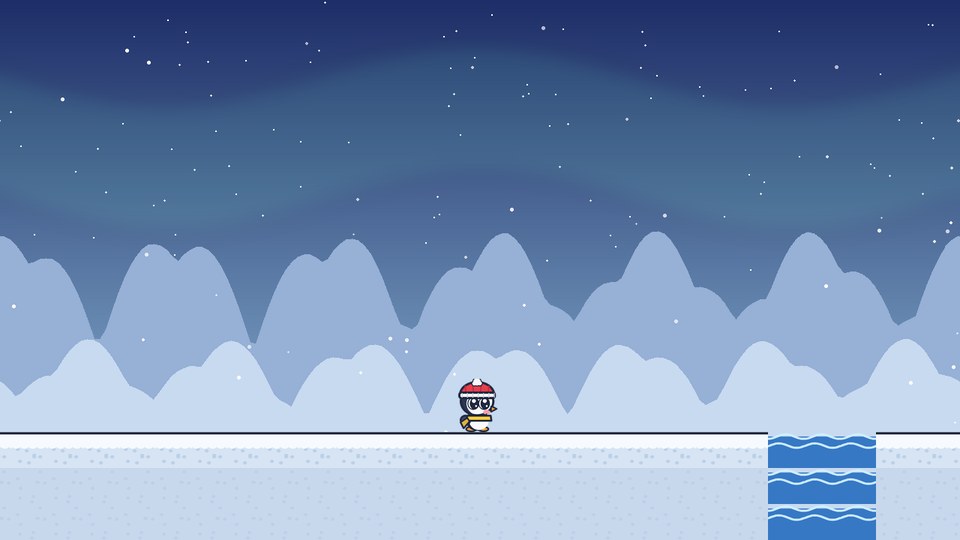
Episode 3 running (a screenshot of the finished episode).
Tuning the feel
The feel of a platformer is in a few numbers:

ACCEL      small gives a slippery, heavy penguin; big makes him start and stop instantly, which is stiff
FRICTION   how far he slides when you let go. At 2200 it is 26 pixels. Try 600 and see what ice would feel like (episode 8 does exactly that on the ice tiles)
GRAVITY    bigger makes a snappy, heavy fall; smaller a floaty one. We will pick the jump to match
40 in self.walk / 40   how quickly the feet move
Try it yourself
Three small changes before episode 4:

1  Make Tux run twice as fast. Does the waddle still look right? (Hint: the animation is tied to distance.)
2  Change GRAVITY to 800 and drop him from the top of the window. Then try 5000.
3  Make him slow down only half as quickly when he is in the air. (Hint: on_ground is already there.)

Episode 4 adds the jump.
Check your work
If something is different:

NameError: name 'approach' is not defined    the helper function goes above the classes, near tile_at
Tux falls through the floor and keeps going    the floor check is missing, or FLOOR_Y is not defined
Tux does not move                              the vx line is missing, or x is not changed by vx * dt
the waddle never plays                         art["walk"] is missing from load_art, or the draw lines of step 2 are not in Tux.draw
he slides a very long way                      FRICTION is too small: it is 2200

Not run in the lab: anything but the flat floor; real tiles come in episode 5.