A penguin you can steer anywhere, and a camera that follows it through a world ten times wider than the window.
▶Prefer to watch? This short video runs this page's main commands on a real Ubuntu 24.04 desktop, with on-screen captions and a synthetic voiceover (an AI voice trained on the author's own recording). Click to play, or watch it on YouTube.
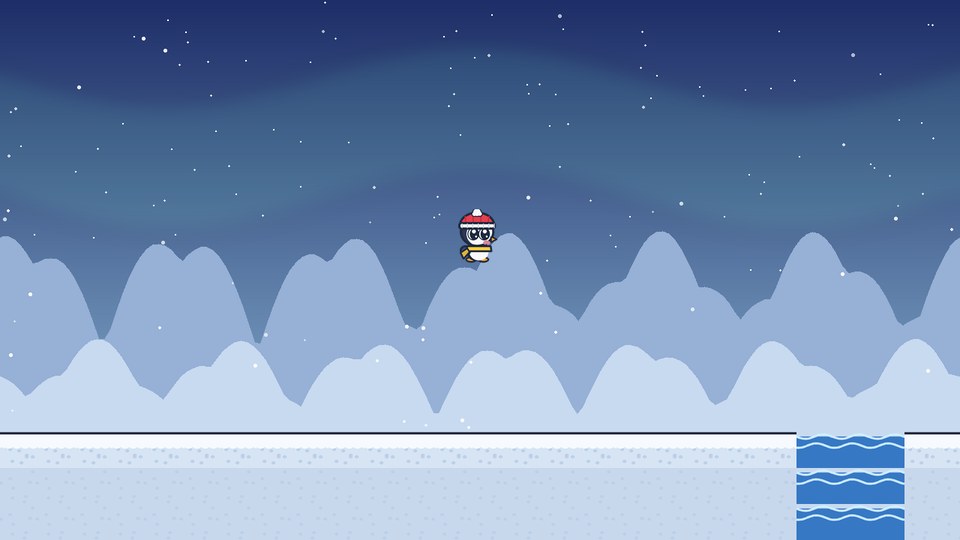
Episode 2 ends with this: Tux, a penguin in a bobble hat, floats around the level with the arrow keys (no gravity yet), the camera follows him and the whole level scrolls past, with the mountains moving at different speeds, until the camera stops at the end of the world.

You will need: your project from episode 1 (a game.py, an art folder and the .venv), or the starter files below.
You will make: a Tux class, a start position read from the level, and a camera.
You will learn: a camera as a single number, clamping a value with min and max, and drawing a sprite relative to the camera.
Starter files: waddle-run-ep01.zip is where this episode begins, waddle-run-ep02.zip is where it ends. Both have the art folder.

The code of each step was run headless on Python 3.12 and pygame 2.5.2, and the numbers quoted below were measured by running it at 60 frames per second. Indentation matters in Python: the new lines on this page keep the indentation they need, so copy it exactly.
Where we start
Open a terminal, go to the project, turn on the virtual environment and run the game:

$ cd waddle-run
$ source .venv/bin/activate
(.venv) $ python game.py

The night sky, the mountains and the first screen of the level, standing still. The file is 129 lines. This episode adds a few constants, one class and a handful of lines in Game.
Step 1: Tux, and a camera that follows him
Everything in this episode is one step, because a camera with nothing to follow cannot be tested. Make these changes:

Add this after line 37 of your file (LEVEL_W, LEVEL_H = COLS * TILE, ROWS * TILE)

RUN_SPEED = 360  # pixels per second

- - -

Add this after line 54 of your file (})

    art["stand"] = load("penguin_stand.png")

- - -

Add this after line 95 of your file (screen.blit(img, (tx * TILE - cam_x, ty * TILE)))

class Tux:
    """The penguin. (x, y) is the bottom centre of his hitbox: where his feet touch the ground."""

    def __init__(self, x, y):
        self.x, self.y = x, y
        self.facing = 1

    def update(self, dt, keys):
        dx = keys[pygame.K_RIGHT] - keys[pygame.K_LEFT]
        dy = keys[pygame.K_DOWN] - keys[pygame.K_UP]
        self.x += dx * RUN_SPEED * dt
        self.y += dy * RUN_SPEED * dt
        if dx:
            self.facing = dx

    def draw(self, screen, art, cam_x):
        img = art["stand"]
        if self.facing < 0:
            img = pygame.transform.flip(img, True, False)
        screen.blit(img, (self.x - cam_x - img.get_width() / 2, self.y - img.get_height() + 1))

- - -

Add this after line 100 of your file (self.cam_x = 0.0)

        for ty, row in enumerate(LEVEL):
            if "P" in row:
                self.start = (row.index("P") * TILE + TILE / 2, (ty + 1) * TILE)
        self.tux = Tux(*self.start)

- - -

Add this after line 103 of your file (self.t += dt)

        tux = self.tux
        tux.update(dt, keys)
        self.cam_x = min(max(tux.x - WIDTH / 2, 0), LEVEL_W - WIDTH)  # follow Tux, but never show past the world's edge

- - -

Add this after line 107 of your file (draw_level(screen, self.art, self.cam_x, self.t))

        self.tux.draw(screen, self.art, self.cam_x)

What is new:

RUN_SPEED = 360            how fast Tux moves, in pixels per second: 7.5 tiles a second
class Tux                  the penguin. x and y are the bottom centre of his body: the spot where his feet touch the ground. Putting the origin at the feet makes everything later easier (standing on the ground is just y equal to the ground's top edge)
self.facing                1 for right, -1 for left, so we can flip the picture
update(dt, keys)           keys is what pygame.key.get_pressed() gives: indexing it with a key name gives True or False. True minus False is a number, so RIGHT minus LEFT is 1, -1 or 0: a direction without any if statements
x += dx * RUN_SPEED * dt   speed times time is distance. dt is the time of one frame, so Tux moves the same distance per second on any computer
draw                       blit the picture so that its bottom centre is at (x, y), then subtract cam_x: the world position becomes a screen position
self.start                 Game looks through the level text for the P and puts Tux on that tile (the bottom of the tile is the middle of its row plus half a tile)
self.cam_x = min(max(tux.x - WIDTH / 2, 0), LEVEL_W - WIDTH)    the camera. We want Tux in the middle of the window, so the camera's left edge is half a window to the left of him. max(..., 0) stops it showing anything left of the level, and min(..., LEVEL_W - WIDTH) stops it showing anything right of it. This one line is a complete follow camera
draw order                the background, the level, then Tux on top

Run it:

(.venv) $ python game.py

Tux appears at the start of the level. Arrow keys move him in all four directions, with no gravity yet, and the level scrolls so that he stays in the middle of the window. Look at the mountains while you fly: the near ones move faster than the far ones. Near the left edge, Tux walks toward the left of the window instead of staying in the middle, because the camera has reached the start of the level; the same happens at the far end. (Checked: with Tux at x = 1000 the camera is at 360; at x = 50 it is at 0; at x = 13400 it stops at 12160, which is the level width minus the window width, 12160.)
Episode 2 running (a screenshot of the finished episode).
Try it yourself
Three small changes before episode 3:

1  Make Tux faster or slower by changing RUN_SPEED. How does the parallax feel when he is very fast?
2  Make the camera look a bit ahead of Tux when he faces right: add something to cam_x that depends on facing. (Hint: it is one more term in the min/max line.)
3  Change the far mountain speed from 0.15 to 0.05 and to 0.5 in draw_background. Which one looks more like a distant mountain?

Episode 3 turns the floating penguin into a running one: gravity and acceleration.
Check your work
If something is different:

AttributeError: 'Game' object has no attribute 'tux'      the line that creates Tux is missing from Game.__init__
KeyError: 'stand'                                          the line that loads penguin_stand.png is missing from load_art
Tux starts in the wrong place                              the level needs exactly one P, and every row must have the same length
the world does not scroll                                  cam_x is not being passed on: draw_background and draw_level both take it
Tux leaves the window near the edges                       that is correct: the camera stops at the ends, and Tux keeps going

Not run in the lab: any controller other than the keyboard, and screens that are not 1280 by 720.