From a folder of files to a program with a menu entry, an icon and a package. Four small steps.
▶Prefer to watch? This short video runs this page's main commands on a real Ubuntu 24.04 desktop, with on-screen captions and a synthetic voiceover (an AI voice trained on the author's own recording). Click to play, or watch it on YouTube.
Episode 9 is the last one. It ends with this: Hotdog Dash in the GNOME menu with its icon, the right icon in the dock, a manual page (man hotdog-dash), a command that works from anywhere, and a single .deb file that anyone on Ubuntu can install and remove again.

You will need: your project from episode 8 (a game.py and the art, sounds and music folders), or the starter files below, and a clean Ubuntu 24.04 to try the package on.
You will make: two lines in game.py, six small files in a packaging folder, and a .deb package.
You will learn: what GNOME needs to show a program in the menu and the dock, how a Debian package is laid out, dpkg-deb, and lintian.
Starter files: hotdog-dash-ep08.zip is where this episode begins, hotdog-dash-ep09.zip is where it ends, with the packaging folder in it.

The package was built, checked with lintian and desktop-file-validate, installed with apt on a clean Ubuntu 24.04 (first in a container, then on a GNOME desktop on Xorg, the machine the video of this episode was recorded on), started from the menu and from a terminal, and removed again in the container. In the desktop session the menu search for hotdog found Hotdog Dash with its icon, the dock showed the hotdog icon with the running dot, and man hotdog-dash showed the manual page.
Where we start
Open a terminal, go to the project, turn on the virtual environment and run the game:

$ cd hotdog-dash
$ source .venv/bin/activate
(.venv) $ python game.py

The game works, with sound, a title screen, levels and a high score. But it only starts from a terminal, in its own folder, and if you look at the dock while it runs there is a plain gear with no name: the desktop does not know what this window is.
Step 1: a class name and an icon
Two small changes in game.py:

Replace line 10

import pygame

with

# GNOME groups the window under hotdog-dash.desktop by this name.
# SDL reads it when pygame loads, so it has to be set before the import.
os.environ.setdefault("SDL_VIDEO_X11_WMCLASS", "hotdog-dash")
import pygame  # noqa: E402

- - -

Add this after line 280 of your file (IMG.update(load_images()))

        pygame.display.set_icon(IMG["hotdog_1"])

What each does:

SDL_VIDEO_X11_WMCLASS              pygame uses a library called SDL for its window. On X11 (and Xorg under GNOME) every window has a class name, and the desktop uses it to decide which program the window belongs to, so which icon to show and which dock entry to group it with. SDL reads the name from this environment variable
os.environ.setdefault(...)         sets the variable only if nobody set it already, so you can still override it
above import pygame                SDL reads the variable when pygame is first loaded. Set it afterwards and nothing happens
# noqa: E402                       the linter does not like an import after other code. The comment tells it this one is on purpose
pygame.display.set_icon            the icon of the window itself, a picture we already have: the hotdog with its mouth half open

(os is imported already, since episode 8, for the high score file.)

Run it:

(.venv) $ python game.py

It still shows a gear in the dock. The desktop knows the window's class name now, but there is nothing yet that says what program goes by that name. The next step adds it.
Step 2: the launcher, the desktop file and the control file
A program needs three things for the desktop and the package manager. Make a folder packaging/ in the project and put these files in it. First the launcher, packaging/hotdog-dash: a script that starts the game from wherever it is installed.

#!/bin/sh
exec python3 /usr/share/hotdog-dash/game.py "$@"

exec                               replaces the shell with Python, so there is no extra process left
/usr/share/hotdog-dash/game.py     where the package will put the game
"$@"                               passes on any arguments you give the command

The desktop file, packaging/hotdog-dash.desktop, is what puts the game in the menu:

[Desktop Entry]
Type=Application
Name=Hotdog Dash
Comment=A hungry hotdog eats sauce packets and dodges swooping seagulls
Exec=hotdog-dash
Icon=hotdog-dash
Terminal=false
Categories=Game;ArcadeGame;
StartupWMClass=hotdog-dash

Name, Comment                      what the menu shows
Exec=hotdog-dash                   the command to run (the launcher, found on the path in /usr/games)
Icon=hotdog-dash                   the name of an icon, without the extension. The desktop looks for hotdog-dash.png in its icon folders
Terminal=false                     it is a window, so no terminal around it
Categories=Game;ArcadeGame;        where it appears in a menu
StartupWMClass=hotdog-dash         the class name from step 1. This line is what lets the dock match the window to this entry

The control file, packaging/control, is the package's identity card:

Package: hotdog-dash
Version: 1.0.0
Section: games
Priority: optional
Architecture: all
Depends: python3, python3-pygame
Maintainer: TechCommune <admin@techcommune.org>
Description: Maze arcade game: a hotdog versus swooping seagulls
 Steer a hungry hotdog round the picnic maze, eat the ketchup,
 relish and mustard packets and dodge the seagulls that swoop
 in from above. Built with pygame as a tutorial series for
 techcommune.org.

Package, Version, Section          the name, the version and where it is filed (games)
Architecture: all                  it is Python, so one package works on every kind of computer
Depends: python3, python3-pygame   what apt installs with it. This is the line that makes the package install pygame for the user
Maintainer                         who to ask. Change it to yours
Description                        a short line, then more lines that start with one space

Three more files complete the package, and one more makes it. They are plain text too, and they are in the starter zip:

packaging/changelog                the history of the package. Debian wants one, even for a first release
packaging/copyright                who owns it and what you may do with it. This one says: free to use in your own projects, credit appreciated. Put in what is true for your own game
packaging/hotdog-dash.6            the manual page, in the old roff format. The 6 is the section for games
packaging/hotdog-dash.png          the icon, 128 by 128 pixels: the hotdog from the game, drawn larger
packaging/build_deb.sh             the script that builds the package, in the next step
Step 3: build the package
A .deb file is an archive that holds the files laid out as they will be on the user's machine, plus the control file. The build script makes that layout in a folder, and packs it with dpkg-deb:

#!/bin/sh
# Build hotdog-dash_1.0.0_all.deb from this game folder. Run it from anywhere: sh packaging/build_deb.sh
set -e
cd "$(dirname "$0")/.."
V=1.0.0
P=build/hotdog-dash_${V}_all
rm -rf build
mkdir -p $P/DEBIAN $P/usr/games $P/usr/share/applications $P/usr/share/doc/hotdog-dash \
  $P/usr/share/icons/hicolor/128x128/apps $P/usr/share/hotdog-dash $P/usr/share/man/man6
cp game.py $P/usr/share/hotdog-dash/
cp -r art sounds music $P/usr/share/hotdog-dash/
install -m 755 packaging/hotdog-dash $P/usr/games/hotdog-dash
install -m 644 packaging/hotdog-dash.desktop $P/usr/share/applications/
install -m 644 packaging/hotdog-dash.png $P/usr/share/icons/hicolor/128x128/apps/hotdog-dash.png
install -m 644 packaging/copyright $P/usr/share/doc/hotdog-dash/copyright
gzip -9n -c packaging/changelog > $P/usr/share/doc/hotdog-dash/changelog.gz
gzip -9n -c packaging/hotdog-dash.6 > $P/usr/share/man/man6/hotdog-dash.6.gz
install -m 644 packaging/control $P/DEBIAN/control
find $P -type d -exec chmod 755 {} +
find $P/usr/share -type f -exec chmod 644 {} +
dpkg-deb --root-owner-group --build $P
mv build/hotdog-dash_${V}_all.deb .
echo "built hotdog-dash_${V}_all.deb"

What it does:

P=build/hotdog-dash_${V}_all       the folder where the layout is made, and the name of the package file
usr/games, usr/share/...           the places on a Linux system for games, shared files, documentation, icons, manual pages and desktop files. A package puts files where each kind belongs
the icon                           the 128 by 128 picture from packaging, installed with the name hotdog-dash, the one the desktop file asks for
changelog.gz, hotdog-dash.6.gz     documentation is stored compressed. gzip -9n gives smaller files and no timestamp inside them
find ... chmod                     directories get 755 and files 644, so the permissions do not depend on your umask
dpkg-deb --root-owner-group        packs the folder. The flag makes everything in the package owned by root, whoever built it

Run it, and look at the result:

$ sh packaging/build_deb.sh
dpkg-deb: building package 'hotdog-dash' in 'build/hotdog-dash_1.0.0_all.deb'.
built hotdog-dash_1.0.0_all.deb
$ dpkg-deb -I hotdog-dash_1.0.0_all.deb
 new Debian package, version 2.0.
 size 952022 bytes: control archive=390 bytes.
     436 bytes,    12 lines      control
 Package: hotdog-dash
 Version: 1.0.0
 Section: games
 Priority: optional
 Architecture: all
 Depends: python3, python3-pygame
 Maintainer: TechCommune <admin@techcommune.org>
 Description: Maze arcade game: a hotdog versus swooping seagulls
  Steer a hungry hotdog round the picnic maze, eat the ketchup,
  relish and mustard packets and dodge the seagulls that swoop
  in from above. Built with pygame as a tutorial series for
$ dpkg-deb -c hotdog-dash_1.0.0_all.deb | grep -v -e art/ -e sounds/ -e music/
(the package holds 53 files and folders, here without the pictures, sounds and music:)
drwxr-xr-x root/root         0 2026-11-12 19:22 ./
drwxr-xr-x root/root         0 2026-11-12 19:22 ./usr/
drwxr-xr-x root/root         0 2026-11-12 19:22 ./usr/games/
-rwxr-xr-x root/root        59 2026-11-12 19:22 ./usr/games/hotdog-dash
drwxr-xr-x root/root         0 2026-11-12 19:22 ./usr/share/
drwxr-xr-x root/root         0 2026-11-12 19:22 ./usr/share/applications/
-rw-r--r-- root/root       226 2026-11-12 19:22 ./usr/share/applications/hotdog-dash.desktop
drwxr-xr-x root/root         0 2026-11-12 19:22 ./usr/share/doc/
drwxr-xr-x root/root         0 2026-11-12 19:22 ./usr/share/doc/hotdog-dash/
-rw-r--r-- root/root       140 2026-11-12 19:22 ./usr/share/doc/hotdog-dash/changelog.gz
-rw-r--r-- root/root       115 2026-11-12 19:22 ./usr/share/doc/hotdog-dash/copyright
drwxr-xr-x root/root         0 2026-11-12 19:22 ./usr/share/hotdog-dash/
-rw-r--r-- root/root     19815 2026-11-12 19:22 ./usr/share/hotdog-dash/game.py
drwxr-xr-x root/root         0 2026-11-12 19:22 ./usr/share/icons/
drwxr-xr-x root/root         0 2026-11-12 19:22 ./usr/share/icons/hicolor/
drwxr-xr-x root/root         0 2026-11-12 19:22 ./usr/share/icons/hicolor/128x128/
drwxr-xr-x root/root         0 2026-11-12 19:22 ./usr/share/icons/hicolor/128x128/apps/
-rw-r--r-- root/root      8724 2026-11-12 19:22 ./usr/share/icons/hicolor/128x128/apps/hotdog-dash.p
drwxr-xr-x root/root         0 2026-11-12 19:22 ./usr/share/man/
drwxr-xr-x root/root         0 2026-11-12 19:22 ./usr/share/man/man6/
-rw-r--r-- root/root       462 2026-11-12 19:22 ./usr/share/man/man6/hotdog-dash.6.gz


(Your times will differ, and so will the size.) The last check is lintian, a program that knows the rules of Debian packaging. It is a separate package (sudo apt install lintian):

$ lintian --pedantic hotdog-dash_1.0.0_all.deb
$ echo $?
0

No output means no complaints, even with --pedantic, which looks at the small things too. (Checked in an Ubuntu 24.04 container. An earlier version of the copyright file had one pedantic complaint, copyright-without-copyright-notice: the line that starts with Copyright is there for that reason.) The desktop file passes desktop-file-validate with no output, too.
Step 4: install it and start it like any other program
Install the file with apt. The ./ in front matters: it tells apt that this is a file and not the name of a package in the archive.

$ sudo apt install ./hotdog-dash_1.0.0_all.deb

apt reads the control file, sees Depends: python3, python3-pygame, and installs those too (python3-pygame comes with a handful of libraries). If the .deb file is in your home folder, apt may end with a notice that begins 'Download is performed unsandboxed as root as file ... couldn't be accessed by user _apt'. It is harmless: apt's own download user cannot read your home folder, so apt reads the file as root. Then:

1  Press the Super key (the one with the Windows logo), type hotdog, and Hotdog Dash is there, with its icon. Press Enter.
2  The game starts. In the dock it has the hotdog icon and the little dot of a running program, because the window's class name matches StartupWMClass in the desktop file.
3  Open a terminal and type hotdog-dash: the same game starts, from any folder, because the launcher is in /usr/games.
4  man hotdog-dash shows the manual page.

(Checked on a clean Ubuntu 24.04 container: apt installed the package and python3-pygame 2.5.2 from the Ubuntu archive, dpkg -l showed it as installed, /usr/games/hotdog-dash started the game, and it kept running until a four second timeout stopped it. The menu, the dock and the manual page were checked in the desktop session of the video: typing hotdog in the Activities search found the game with its icon, and the dock showed the hotdog icon with the running dot while it ran.)

To remove it again:

$ sudo apt remove hotdog-dash

(Checked: the files in /usr/share/hotdog-dash and /usr/games were gone and dpkg no longer listed the package.) Nothing is left behind except your high score in ~/.local/share/hotdog-dash, which is your own file.
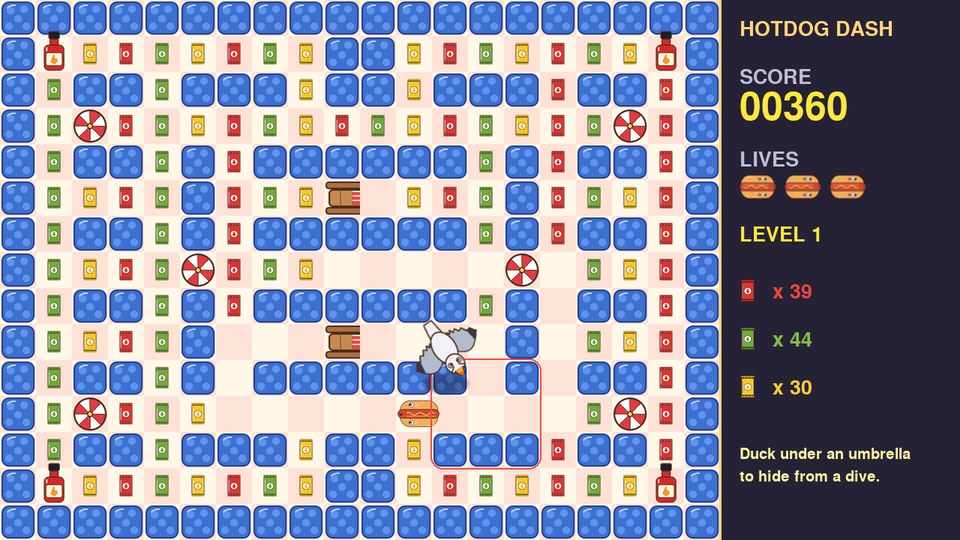
Episode 9 running (a screenshot of the finished step).
Where to go from here
You now have a game made in nine small steps, from an empty window to a package. Some ideas for what to do with it:

a new maze                        MAZE is a list of strings. Draw your own, with more umbrellas, or none
a second power-up                 a speed boost, or a freezing sauce that slows the gulls
a gamepad                         pygame can read joysticks
your own pictures and sounds      draw pictures in any program that saves PNG files, and change the numbers in make_sounds.py (it is in the ep08 zip) to hear what they do
a new version of the package      change the version in control and build_deb.sh, add a line to the changelog, and build again

The series is also a template for any small Python program that you want to give to somebody else: a launcher, a desktop file, a control file, and one script that builds it.
Check your work
If something is different:

dpkg-deb: error: control file ... missing        packaging/control is missing or is not in the right folder
lintian: E: no-changelog / W: no-manual-page      the changelog.gz and the manual page are missing from the package
the menu does not show the game                  the desktop file is not in /usr/share/applications, or it has a typo. Run desktop-file-validate on it. A new entry can take a moment to show up: log out and in again if it does not
the menu shows it, but with a gear                the Icon= name and the icon file name must match: hotdog-dash.png in hicolor/128x128/apps
the dock shows a second, gear icon                StartupWMClass must be the same as the class name in game.py, and the os.environ line must be above import pygame
dependency problems on install                   run: sudo apt install ./hotdog-dash_1.0.0_all.deb (with the ./) and read what apt says it cannot find

Not run: other Linux distributions, Wayland-only sessions, RPM and other package formats, and uploading the package to a repository.