A window, a game loop and a burger. Real commands, real output, on a clean Ubuntu 24.04 desktop.
▶Prefer to watch? This short video runs this page's main commands on a real Ubuntu 24.04 desktop, with on-screen captions and a synthetic voiceover (an AI voice trained on the author's own recording). Click to play, or watch it on YouTube.
Burger Blaster: a hamburger shoots french fries at angry milkshakes, in a normal window on your Linux desktop. We build it in nine short episodes.
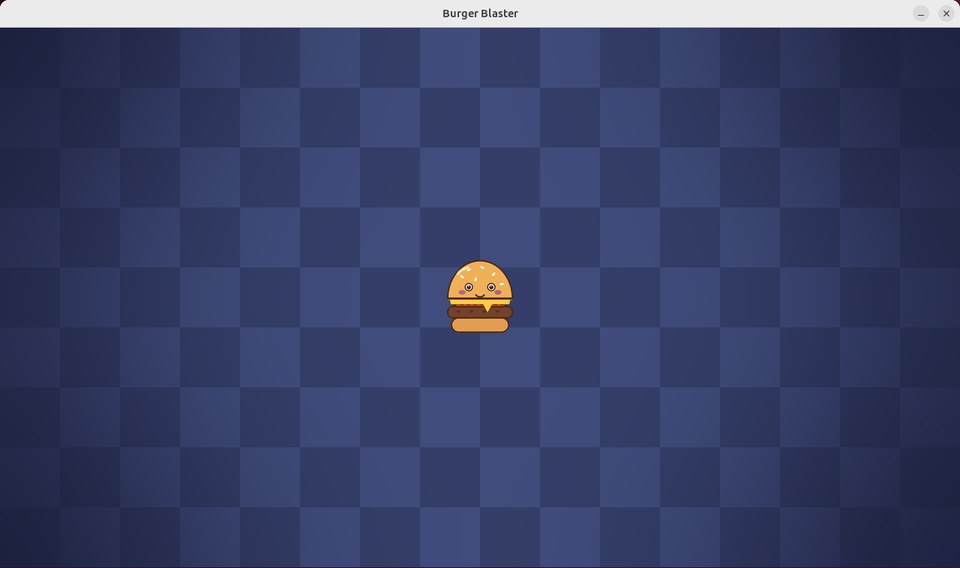
Episode 1 ends with this: a 1280x720 window, 60 frames a second, the burger in the middle, and Esc to quit.

You will need: Ubuntu 24.04 with a desktop, and a terminal. No pygame, no Python packages, nothing else.
You will make: one file, game.py, and a picture folder called art.
You will learn: a virtual environment, the game loop, a clock, drawing pictures.
Starter files: burger-blaster-ep01.zip has the art folder and the finished game.py of this episode.

Every command on this page was run on a freshly installed Ubuntu 24.04 desktop (Python 3.12.3, pygame 2.6.1). The output shown is what that machine printed.
What we are making
The whole series, in one line each:

1  A window and a game loop     (this page)
2  Fly the burger
3  Fire the fries
4  Enter the milkshakes
5  Splat!
6  Lives and respawn
7  Score and waves
8  Sound and juice
9  Ship it: a launcher and a .deb

Each episode starts from the finished code of the one before, and the zip of each episode is a complete, working game. If you skip an episode, download its zip and carry on.

All pictures (the burger, the fries, the milkshakes, the checkered floor) were drawn for this project with a Python script, and all the sound will be made with Python too. Nothing is borrowed, so nothing has a licence you need to read.
Make a project folder
$ mkdir -p burger-blaster
$ cd burger-blaster
$ python3 --version
Python 3.12.3

Python 3.12 is what Ubuntu 24.04 ships. Any 3.10 or newer works the same.
A virtual environment, and the error you will probably get
A virtual environment is a folder that holds the Python packages of one project, so installing pygame here does not touch the rest of your system. Ubuntu makes it with the venv module:

$ python3 -m venv .venv
The virtual environment was not created successfully because ensurepip is not
available.  On Debian/Ubuntu systems, you need to install the python3-venv
package using the following command.

    apt install python3.12-venv

You may need to use sudo with that command.  After installing the python3-venv
package, recreate your virtual environment.

Failing command: /home/ubuntu/burger-blaster/.venv/bin/python3

That is a clean Ubuntu: the venv module is split into its own package and is not installed by default. The message tells you the fix, and the package name for Python 3.12 pulls in the right one:

$ sudo apt install python3-venv
Setting up python3.12-venv (3.12.3-1ubuntu0.17) ...
Setting up python3-venv (3.12.3-0ubuntu2.1) ...

Running kernel seems to be up-to-date.

No services need to be restarted.

No containers need to be restarted.

No user sessions are running outdated binaries.

No VM guests are running outdated hypervisor (qemu) binaries on this host.

(Shortened to the last lines: apt also printed the package list and the download progress.) Now it works, and prints nothing when it does:

$ python3 -m venv .venv
$ ls -a
.
..
.venv

Turn the environment on. The prompt gets a (.venv) in front, and from now on python and pip mean the ones inside .venv:

$ source .venv/bin/activate
(.venv) $ which python
/home/ubuntu/burger-blaster/.venv/bin/python
Install pygame
pygame is the library that gives us the window, the keyboard, the pictures and the sound:

(.venv) $ pip install pygame
Collecting pygame
  Downloading pygame-2.6.1-cp312-cp312-manylinux_2_17_x86_64.manylinux2014_x86_64.whl.metadata (12 kB)
Downloading pygame-2.6.1-cp312-cp312-manylinux_2_17_x86_64.manylinux2014_x86_64.whl (14.0 MB)
   ━━━━━━━━━━━━━━━━━━━━━━━━━━━━━━━━━━━━━━━━ 14.0/14.0 MB 28.1 MB/s eta 0:00:00
Installing collected packages: pygame
Successfully installed pygame-2.6.1
(Shortened to the last lines.)

(.venv) $ pip list
Package Version
------- -------
pip     24.0
pygame  2.6.1

Check that it imports. It prints its own version banner, then the number we asked for:

(.venv) $ python -c "import pygame; print(pygame.version.ver)"
pygame 2.6.1 (SDL 2.28.4, Python 3.12.3)
Hello from the pygame community. https://www.pygame.org/contribute.html
2.6.1

pygame 2.6.1 was the current release when this was written. The code in this series does not use anything new, so 2.5 and later will do.
Step 1: the smallest window
Make a file called game.py and put this in it:

import pygame

pygame.init()
screen = pygame.display.set_mode((1280, 720))
pygame.display.set_caption("Burger Blaster")

running = True
while running:
    for event in pygame.event.get():
        if event.type == pygame.QUIT:
            running = False
    screen.fill((52, 62, 104))
    pygame.display.flip()

pygame.quit()

What each part does:

pygame.init()              start pygame's modules
set_mode((1280, 720))      open a window 1280 pixels wide and 720 tall, and give back its drawing surface
set_caption               the title in the title bar
while running             the loop: one pass is one frame of the game
pygame.event.get()         every key press, mouse click and window-close click since the last frame
event.type == QUIT         the person clicked the close button, so stop the loop
screen.fill(...)          paint the whole window one colour: (red, green, blue), 0 to 255 each
display.flip()             show what we drew; until this call the window shows the old frame

Run it:

(.venv) $ python game.py

A plain blue-purple window opens. Click the close button and the program ends. That is a complete pygame program, and every game we write is this loop with more in it.
Step 2: a game loop that keeps time
Two problems with the first version. It runs as fast as the computer lets it, so it would be fast on a gaming PC and slow on an old laptop. And everything is loose in one block, so it will be hard to grow. We fix both: a Clock that caps the speed at 60 frames a second, and a Game class with one method for each job.

import sys

import pygame

WIDTH, HEIGHT = 1280, 720
FPS = 60


class Game:
    def __init__(self):
        pygame.init()
        pygame.display.set_caption("Burger Blaster")
        self.screen = pygame.display.set_mode((WIDTH, HEIGHT))
        self.clock = pygame.time.Clock()
        self.running = True

    def handle_events(self):
        for event in pygame.event.get():
            if event.type == pygame.QUIT:
                self.running = False
            elif event.type == pygame.KEYDOWN:
                if event.key == pygame.K_ESCAPE:
                    self.running = False

    def update(self, dt):
        pass

    def draw(self):
        self.screen.fill((52, 62, 104))
        pygame.display.flip()

    def run(self):
        while self.running:
            dt = self.clock.tick(FPS) / 1000
            self.handle_events()
            self.update(dt)
            self.draw()
        pygame.quit()


if __name__ == "__main__":
    Game().run()
    sys.exit(0)

The important lines:

self.clock.tick(FPS)       waits until 1/60 s has passed since the last call, and returns how many milliseconds that really was
/ 1000                     we want seconds, so dt is the time of this frame in seconds (about 0.0167)
handle_events              input
update(dt)                 move things, by speed times dt, so they move at the same speed on any computer (empty for now)
draw                       paint the frame

It also quits on Esc: a KEYDOWN event whose key is K_ESCAPE. The 'update' method does nothing yet, and it is the one we fill in from episode 2 on.

The two blank lines before the if line are not decoration: Python style (PEP 8) wants two blank lines around top-level definitions. And the last two lines run the game only when the file is run directly, so later we can import it for testing.
Step 3: load the pictures and draw the burger
Put the art folder next to game.py (it is in the zip). It holds the pictures for the whole series as PNG files with transparent backgrounds (the burger, the fries, three milkshake flavours, the splat frames, a lives icon and the floor). This episode uses two of them, background.png and burger.png, and loads the lot so we do not have to touch this code again. Then change the file to this:

#!/usr/bin/env python3
"""Burger Blaster: a hamburger shoots french fries at angry milkshakes."""
import sys
from pathlib import Path

import pygame

WIDTH, HEIGHT = 1280, 720
FPS = 60
HERE = Path(__file__).resolve().parent
ART = HERE / "art"

IMG = {}


def load_images():
    return {p.stem: pygame.image.load(p).convert_alpha() for p in ART.glob("*.png")}


class Game:
    def __init__(self):
        pygame.init()
        pygame.display.set_caption("Burger Blaster")
        self.screen = pygame.display.set_mode((WIDTH, HEIGHT))
        self.clock = pygame.time.Clock()
        IMG.update(load_images())
        self.running = True

    def handle_events(self):
        for event in pygame.event.get():
            if event.type == pygame.QUIT:
                self.running = False
            elif event.type == pygame.KEYDOWN:
                if event.key == pygame.K_ESCAPE:
                    self.running = False

    def update(self, dt):
        pass

    def draw(self):
        surf = self.screen
        surf.blit(IMG["background"], (0, 0))
        surf.blit(IMG["burger"], IMG["burger"].get_rect(center=(WIDTH / 2, HEIGHT / 2)))
        pygame.display.flip()

    def run(self):
        while self.running:
            dt = self.clock.tick(FPS) / 1000
            self.handle_events()
            self.update(dt)
            self.draw()
        pygame.quit()

if __name__ == "__main__":
    Game().run()
    sys.exit(0)

What is new:

HERE / ART                 the art folder, found next to the game file, wherever you run it from, using pathlib
load_images                reads every PNG in the folder into a dictionary: the file name without .png is the key
.convert_alpha()           converts each picture to the same pixel format as the window, once, so drawing it later is fast and keeps the transparency
IMG["background"]          one name for each picture, so the rest of the game never mentions a file name
surf.blit(picture, pos)    copy a picture onto the surface at a position
get_rect(center=...)       blit wants the top-left corner, so we ask the picture for a rectangle centred on the middle of the window

Order matters. The background is drawn first and the burger second, so the burger is on top.

Run it:

(.venv) $ python game.py
pygame 2.6.1 (SDL 2.28.4, Python 3.12.3)
Hello from the pygame community. https://www.pygame.org/contribute.html

The window opens with the diner floor and the burger in the middle, at 60 frames a second. Press Esc, or click the close button, and it closes. The program exits with status 0 when it is closed with Esc (checked in the lab).

The picture below is that window on the Ubuntu 24.04 desktop, the way the lab machine showed it.
The finished episode 1 window on the lab's Ubuntu 24.04 desktop.
What the dock shows (and why we fix it in episode 9)
The window works, but look at the dock while it is open: it shows a gear with no name, because GNOME does not know that this window belongs to any application. A game started from a terminal with python game.py has no launcher and no icon of its own. Episode 9 gives it a launcher, a menu entry and a proper icon, and packages the whole thing as a .deb. Nothing to do about it now.
Try it yourself
Three small changes, each a line or two. Do them before episode 2:

1  Change the window caption, and the window size (WIDTH and HEIGHT). The floor picture is 1280x720, so what happens to it in a bigger or smaller window?
2  Move the burger to the lower left: change the centre in get_rect.
3  Make the loop print dt once a second. (Hint: add the time up in update, and print and reset when it passes 1.0. It should be close to 0.0167 each frame.)

Episode 2 teaches the burger to turn, thrust and drift. For that, the empty update(dt) method is where all the work goes.
Check your work
If something is different:

ModuleNotFoundError: No module named 'pygame'   the environment is not active: run source .venv/bin/activate and try again
KeyError: 'burger'                               the art folder is not next to game.py, or it is empty
pygame.error: No available video device          no desktop session (for example over plain ssh): run it on the desktop, not in a text login
the window is there but black                    display.flip() is missing, or draw() is not called

Not run in the lab: other Linux distributions, Wayland-only sessions (the lab session used Xorg; pygame uses SDL, which can run on either), Python older than 3.12, and pygame older than 2.6.