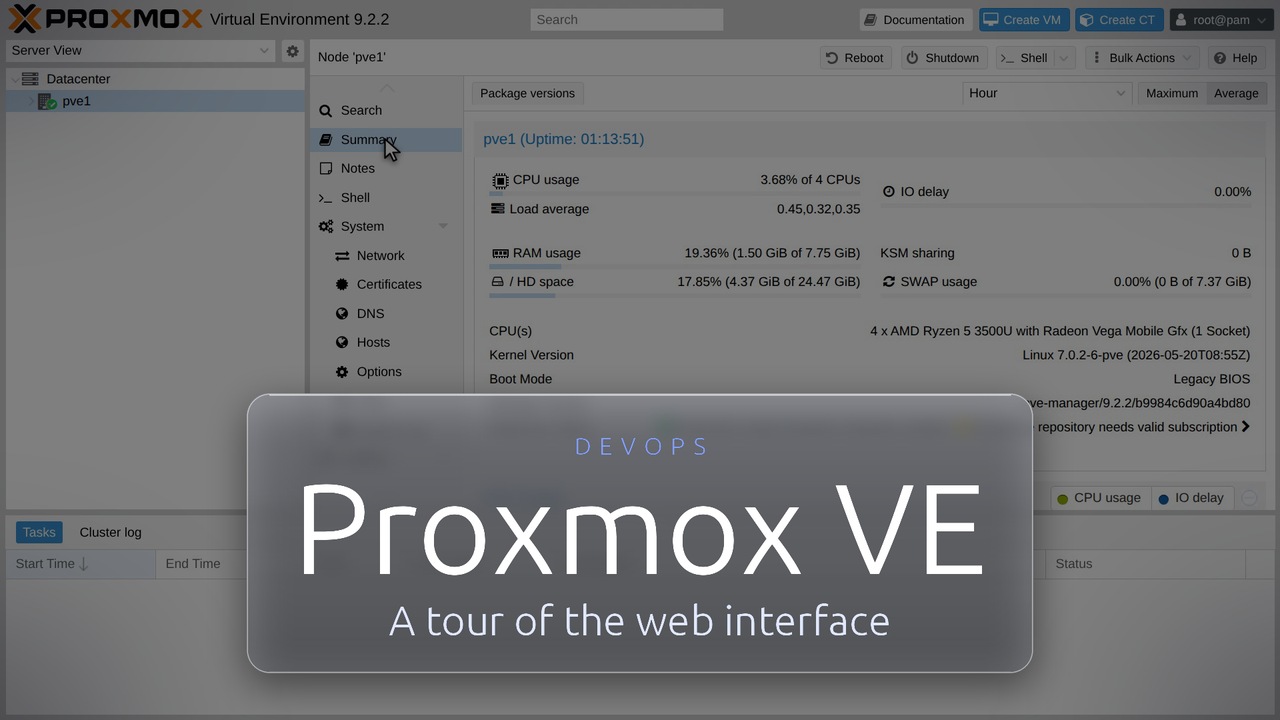
Every screen was recorded in a real Proxmox VE 9.2 lab: from the sign-in page to API tokens, in the order you meet them
▶Prefer to watch? This 7-minute tour clicks through the Proxmox VE 9.2 web interface in a real lab, with on-screen captions and no voiceover. Click to play, or watch it on YouTube.
Proxmox VE Web Interface: a tour of the screens you use every day
xdg-open https://pve1:8006

Proxmox VE is managed from one web page on port 8006 of the node. This page follows the video:
what each screen is for and what to click, on a real install of Proxmox VE 9.2. It is the
browser companion to the Proxmox VE command-line guide, which covers the install,
the shell commands and the gotchas.

Chapters in the video
  0:00   Sign in and look around
  0:37   Fix the repositories
  1:51   Storage
  2:18   Bridges and VLANs
  2:49   Create a virtual machine
  3:43   Create a container
  4:37   Snapshot, change, roll back
  6:05   Back up a guest
  6:41   Users and API tokens
  7:17   Everything in one place
1. Sign in and look around
Open https://NODE-ADDRESS:8006 in a browser (port 8006 on the node).
User root, realm Linux PAM, and the root password.

  The subscription notice   Proxmox shows it when there is no subscription. Click OK.
  The Datacenter view       The tree on the left lists the node, its guests and its storage.
  The node summary          CPU, memory, disk, kernel version and the repository status.
2. Fix the repositories
A fresh install uses the enterprise repositories, which need a paid subscription.
Without one, apt-get update fails with 401 errors.

  1. Node, Updates, Repositories: the status warns that the enterprise repository
     is enabled but there is no subscription.
  2. Two enterprise repositories are listed (Ceph and Proxmox VE). Select each one and click Disable.
  3. Click Add. Proxmox shows the subscription notice again: click OK.
  4. The default in the list is Enterprise. Pick No-Subscription before you click Add.
  5. The repository is added. The warning says this one is not for production.
  6. Updates, Refresh runs apt-get update. The task log now reads the Debian and
     Proxmox repositories cleanly, with no more 401 errors.
3. Storage
  Datacenter, Storage    Every storage, its type and what it may hold:
                         local, local-lvm and tank-zfs in the lab.
                         local keeps ISOs, templates and backups. local-lvm holds guest disks.
  Node, Disks, ZFS       The ZFS pool, its size and its health.
4. Bridges and VLANs
  Node, System, Network   nic0 is the physical port, vmbr0 is the bridge on top of it.
  Edit the bridge         Address, gateway, bridge port nic0 and the VLAN aware option,
                          which lets guests use VLAN tags.
  Create                  Bridges, bonds and VLANs are added from this menu.
5. Create a virtual machine
Create VM opens a wizard. No installation media is used here: only the VM itself is made.

  General   Name the VM. The ID defaults to the next free one, 100.
  OS        Do not use any media.
  System    The defaults: SeaBIOS and VirtIO SCSI single.
  Disks     A 2 GiB disk on local-lvm.
  CPU       One core.
  Memory    512 MiB.
  Network   A VirtIO network card on the vmbr0 bridge.
  Confirm   Every setting is listed before anything is created.

The task log in the footer shows it finished OK, and the new VM appears in the tree, stopped.
These are the same settings as the qm create command.
6. Create a container
A container shares the host kernel, so it starts fast and needs little memory.
It is built from a template. Here: Alpine, already downloaded to the local storage.

  General                 CT ID, hostname and the root password.
  Template                Pick the Alpine image from the local storage.
  Disks, CPU and memory   The defaults: 8 GiB disk, 1 core, 512 MiB.
  Network and DNS         The container joins the vmbr0 bridge.
  Confirm                 Every setting is listed before anything is created.

The task log shows Proxmox creating the volume and unpacking the template, and the container
appears in the tree next to the VM. These are the same settings as the pct create command.
7. Snapshot, change, roll back
A snapshot saves a guest's state so you can return to it. Take one before every change.

  1. The Snapshots tab of a new VM only has the current state.
  2. Take Snapshot and name it before-change. LVM creates a snapshot volume of the disk.
  3. Change something: memory from 512 MiB to 1024 MiB. The hardware list now shows 1024 MiB.
  4. Select the snapshot and click Rollback.
  5. Memory is back to 512 MiB.
8. Back up a guest
Backups use vzdump, which writes one archive to a storage. Do it before changes you cannot undo.

  1. The Backup tab: no backups yet.
  2. Backup now: choose the storage, the mode and the compression.
  3. The task log shows vzdump writing the archive.
  4. The archive is a compressed .vma.zst file on the local storage.

A backup is not tested until you have restored it.
9. Users and API tokens
Users and permissions decide who may do what. An API token lets a script use the API without a password.

  1. Datacenter, Permissions, Users: root@pam is the only user on a new node.
  2. API Tokens lists each token with its expiry and privilege separation.
  3. Add a token: give it an ID and leave privilege separation on.
  4. The secret is shown once. Copy it now, it cannot be shown again.
10. Everything in one place
Datacenter, Search lists the node, both guests and the three storages in one list.
Everything done in the browser also works from the shell.
The tour clicks through one node. It does not show the installer (see the full guide),
clusters, live migration, Ceph, the firewall, or restoring a backup. The VM is created without
installation media, so it is never started in the video.