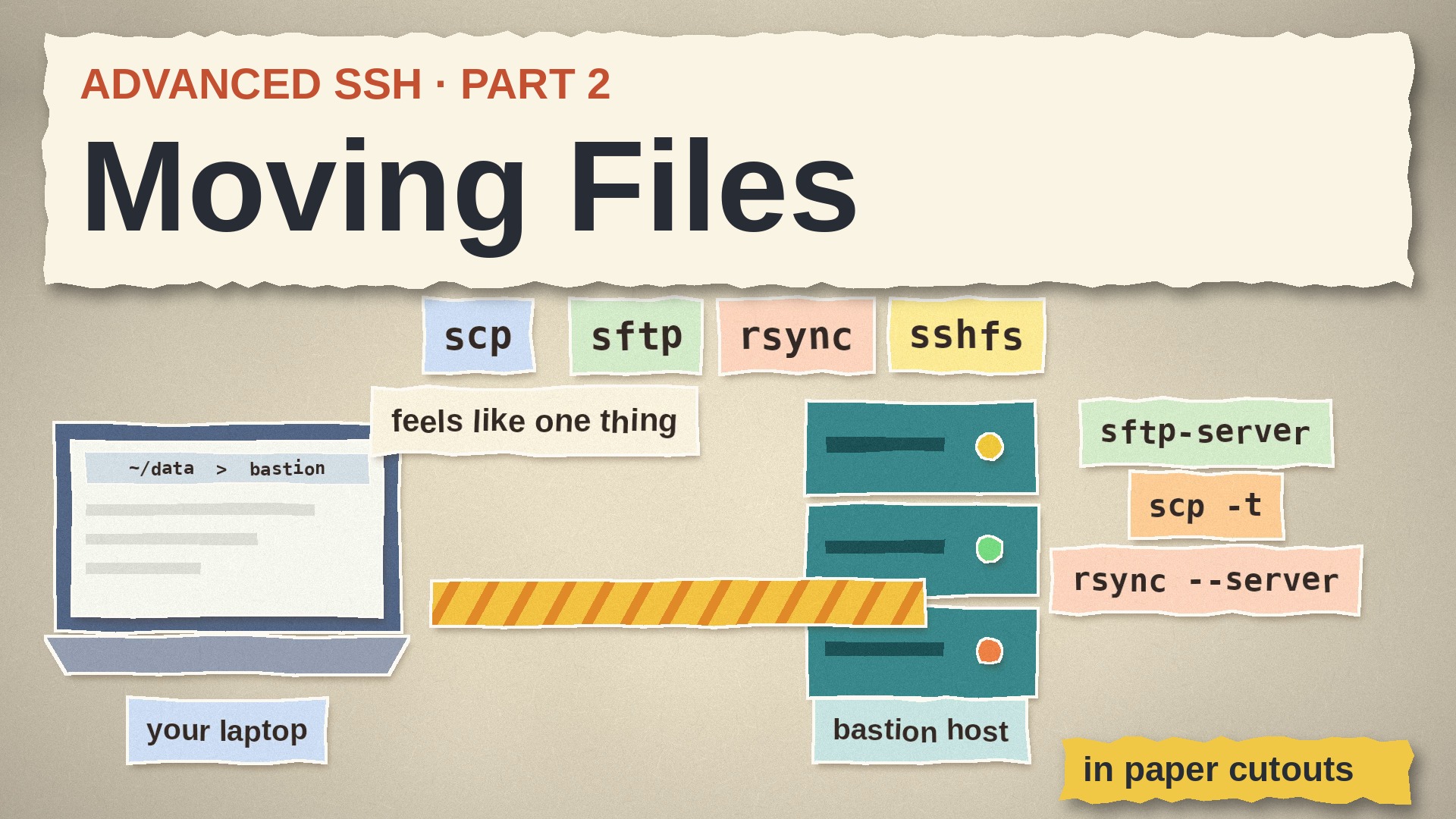
Advanced SSH, part 2: four file tools, one transport. What each one starts on the server, how each fails, and how to lock a transfer account down.
▶Prefer to watch? This short video runs this page's main commands in a real three-machine lab, with on-screen captions and a synthetic voiceover (an AI voice trained on the author's own recording). Click to play, or watch it on YouTube.
Four ways to move files over one SSH login, and what each really does.
scp file host:/dir/            copies with the SFTP protocol since OpenSSH 9.0 (scp -O is the old way)
sftp host                      an interactive file session
rsync -a dir/ host:/dir/       sends only the differences; can resume
sshfs host:/dir ~/mnt          shows a remote folder as a local one
tar cf - dir | ssh host 'tar xf -'    a plain pipe through the connection

All four ride on an ordinary SSH session. What differs is the program that runs on the far side, and that decides how each one behaves when something goes wrong.

This is part 2 of a series on the advanced features of the ssh command. Part 1 covered tunnels and jump hosts. The everyday use of rsync and sshfs is already on this site (the rsync and sshfs guides); this page is the layer underneath, for people who run these tools on real systems. Later parts cover tunnels that stay up and certificates.

Every command below was run for real, in the same lab of three Docker containers on Ubuntu 24.04 with OpenSSH 9.6p1 and rsync 3.2.7, sshfs 3.7.3. The screens are the real output. The section "What was not run" lists what was not tried, and the lab is a local Docker network, so the speed numbers measure the tools, not a real internet link.
Four tools, one transport
Each tool opens an SSH connection and then asks the far side to run something. To see what, start a slow transfer and list the processes on the server while it runs. The laptop copies a 30 MB file to the bastion, throttled so there is time to look.

scp (the default):

$ scp -l 2000 ~/data/big.bin bastion:/tmp/a.bin     # then, on the bastion:
$ ps -eo args | grep -E 'sftp-server|scp|rsync'
/usr/lib/openssh/sftp-server

There is no scp program on the server at all. The server is running the SFTP server, which is what scp uses by default in this version. The same command with -O, the old protocol:

$ scp -O -l 2000 ~/data/big.bin bastion:/tmp/a.bin
scp -t /tmp/a.bin

That is scp running on the server in its "sink" mode (-t). Now rsync:

$ rsync --bwlimit=2000 ~/data/big.bin bastion:/tmp/b.bin
rsync --server -e.LsfxCIvu --bwlimit=2000 . /tmp/b.bin
rsync --server -e.LsfxCIvu --bwlimit=2000 . /tmp/b.bin

rsync starts its own program on the far side, in server mode. The same line appears twice because rsync runs two processes on the receiving side. sftp and sshfs both use the SFTP server:

$ sftp bastion        (left open)
/usr/lib/openssh/sftp-server

$ sshfs bastion:/home/demo ~/mnt
/usr/lib/openssh/sftp-server
--- on the laptop:
sshfs bastion:/home/demo /home/demo/mnt
bash -c exec 2>&1; ps -eo args | grep '[s]shfs'; mount | grep sshfs
bastion:/home/demo on /home/demo/mnt type fuse.sshfs (rw,nosuid,nodev,relatime,user_id=1001,group_id=1001)

So there are really three different things on the server: the SFTP server (sftp, sshfs and, since OpenSSH 9.0, scp), the old scp program (scp -O), and rsync. This decides what a locked-down account can offer, which is the section on restricted accounts below.
scp changed under you
Since OpenSSH 9.0, the scp command speaks the SFTP protocol by default and the old protocol is behind -O. The version in the lab is 9.6. The client says which one it uses if you ask for the debug output:

$ scp -v ~/data/docs/log.txt bastion:/tmp/ 2>&1 | grep -E 'Sending subsystem|Sending command|sftp'
Executing: program /usr/bin/ssh host bastion, user (unspecified), command sftp
debug1: Sending subsystem: sftp

$ scp -O -v ~/data/docs/log.txt bastion:/tmp/ 2>&1 | grep -E 'Sending subsystem|Sending command|sftp'
debug1: Sending command: scp -v -t /tmp/

Why it matters: the old protocol handed the remote path to a shell on the server, so spaces and shell characters in a name needed extra quoting. The new one does not use a shell for the name. A file called "my file.txt" on the bastion:

$ scp 'bastion:/tmp/my file.txt' ~/get/
exit status 0
my file.txt

$ scp -O 'bastion:/tmp/my file.txt' ~/get/
scp: /tmp/my: No such file or directory
scp: file.txt: No such file or directory
exit status 1

With -O the remote shell split the name in two. The old workaround, quoting it a second time for the remote shell, no longer works with this client either:

$ scp -O 'bastion:"/tmp/my file.txt"' ~/get/
protocol error: filename does not match request
exit status 1

Wildcards still work with the default scp:

$ scp 'bastion:/tmp/*.txt' ~/get/
exit status 0
log.txt
my file.txt
semi;colon.txt

(One of those three files has a semicolon in its name; it arrived as an ordinary file.) The practical rule: leave scp alone unless something that only speaks the old protocol forces -O. An old server that lacks the SFTP subsystem is the usual reason; that case was not tried in the lab.
rsync over ssh
rsync does its own work on both ends and uses SSH only as the pipe. The first run sends everything, the second only checks:

$ rsync -a --stats ~/data/small/ bastion:/tmp/small/ | grep -E 'Number of|Total|sent'
Number of files: 2,001 (reg: 2,000, dir: 1)
Number of regular files transferred: 2,000
Total file size: 58,893 bytes
Total transferred file size: 58,893 bytes
Total bytes sent: 189,258
sent 189,258 bytes  received 38,019 bytes  151,518.00 bytes/sec

$ rsync -a --stats ~/data/small/ bastion:/tmp/small/ | grep -E 'Number of|Total|sent'
Number of files: 2,001 (reg: 2,000, dir: 1)
Number of regular files transferred: 0
Total transferred file size: 0 bytes
Total bytes sent: 44,350
sent 44,350 bytes  received 12 bytes  29,574.67 bytes/sec

The second run transferred 0 files and sent about 44 KB, which is the file list. The 2,000 files are 59 KB of real data in total.

Through a jump host. rsync and scp both take the same jump option as ssh. The intranet host is not reachable from the laptop, so -J bastion is how it works (see part 1):

$ rsync -a -e 'ssh -J bastion' ~/data/docs/ intranet:/tmp/docs/
exit status 0
total 10328
-rw-r--r-- 1 demo demo 10575760 Nov 17 04:14 log.txt

$ scp -J bastion ~/data/docs/log.txt intranet:/tmp/viajump.txt
exit status 0
-rw-r--r-- 1 demo demo 10575760 Nov 17 04:14 /tmp/viajump.txt

Resuming. The test: start a 30 MB transfer, throttled, and stop it after three seconds with pkill (which sends SIGTERM). Without --partial the server keeps nothing:

$ rsync --bwlimit=5000 ~/data/big.bin bastion:/tmp/r1.bin        # stopped after 3 s
$ ls -la /tmp | grep r1.bin       # on the bastion
(no output: nothing was left behind)

With --partial the half-sent file stays:

$ rsync --partial --bwlimit=5000 ~/data/big.bin bastion:/tmp/r2.bin     # stopped after 3 s
$ ls -la /tmp | grep r2.bin
-rw-r--r-- 1 demo demo 14319616 Nov 17 04:14 r2.bin

And the next run picks up from there. --append-verify adds the check that what is already there matches. The numbers show that only the missing part was sent, and the checksums of both ends match:

$ rsync --partial --append-verify --stats ~/data/big.bin bastion:/tmp/r2.bin
before: 14319616 of 31457280 bytes
Literal data: 17,137,664 bytes
Matched data: 0 bytes
Total bytes sent: 17,141,927
exit status 0
9428bfdfc590c99c
9428bfdfc590c99c

(Last two lines: sha256 of the laptop's file, then the bastion's.) Only a SIGTERM was tried. A killed connection or a SIGKILL might leave a different temporary file behind; that was not tested.

Exit codes are how scripts find out what happened. Two real ones. An unreachable host:

$ rsync -a ~/data/docs/ nosuchhost:/tmp/x/
ssh: Could not resolve hostname nosuchhost: Temporary failure in name resolution
rsync: connection unexpectedly closed (0 bytes received so far) [sender]
rsync error: unexplained error (code 255) at io.c(232) [sender=3.2.7]
exit status 255

And a file that cannot be read, where rsync finishes the rest and still reports it:

$ rsync -a ~/data/locked/ bastion:/tmp/locked/
rsync: [sender] send_files failed to open "/home/demo/data/locked/s": Permission denied (13)
rsync error: some files/attrs were not transferred (see previous errors) (code 23) at main.c(1356) [sender=3.2.7]
exit status 23
sshfs: what it does and how it fails
sshfs mounts a remote directory using the SFTP server and FUSE. It is a normal user-space program on the laptop; the mount shows as type fuse.sshfs.

$ sshfs bastion:/tmp ~/mnt && echo mounted ; mount | grep sshfs | cut -d' ' -f1-6 ; ls ~/mnt | head -3
mounted
bastion:/tmp on /home/demo/mnt type fuse.sshfs (rw,nosuid,nodev,relatime,user_id=1001,group_id=1001)
a.bin
locked
log.txt

Caching. A listing of a directory with 1,500 small files, three times in a row, with the default caching and then with cache=no:

$ ls -l ~/mnt/big | wc -l      (x3, default)
1501
0.084 s
1501
0.022 s
1501
0.011 s

$ sshfs -o cache=no ...        then the same three runs
1501
0.518 s
1501
0.035 s
1501
0.037 s

The first listing took several times longer without the cache. Later runs were close; this is three runs on one fast local link, so do not read more into the numbers than the first-listing difference. Caching also means another machine's change can stay invisible for a short while.

allow_other needs a setting as an ordinary user. Without it:

$ sshfs -o allow_other bastion:/tmp ~/mnt
fusermount3: option allow_other only allowed if 'user_allow_other' is set in /etc/fuse.conf
exit status 1

The line to enable it is user_allow_other in /etc/fuse.conf.

When the link dies. This is the case that makes people distrust sshfs. The test cut the network to the bastion without closing the connection (the container was disconnected from the Docker network, which is like a pulled cable or a firewall that silently drops packets). With a plain mount, a program reading a file hangs. Twenty seconds in:

$ cat ~/mnt/log.txt          (started before the cut)
20 s after the network dropped:
    PID STAT WCHAN                COMMAND
   8151 S    request_wait_answer  cat /home/demo/mnt/log.txt
   8159 S    anon_pipe_read       cat
--- after kill -9:
    PID STAT COMMAND
   8151 D    cat /home/demo/mnt/log.txt
   8164 S    cat
(cat has not returned)

Look at the second ps: kill -9 did not remove the process. It sits in state D, waiting in the kernel for an answer from sshfs, and a signal cannot reach it there. After the link came back, three seconds later it was still waiting:

STAT COMMAND
D    cat /home/demo/mnt/log.txt
S    cat

(How long it takes to give up on its own, through the normal TCP timeouts, was not measured.) The fix is to let SSH notice the dead link. The same test with keepalives and automatic reconnect:

$ sshfs -o reconnect,ServerAliveInterval=2,ServerAliveCountMax=2 bastion:/tmp ~/mnt
$ cat ~/mnt/log.txt | wc -c         (network cut meanwhile)
04:15:41
cat: /home/demo/mnt/log.txt: Input/output error
0
exit status 1
04:15:46

The read failed with an input/output error after about five seconds (the two times are the start and end), instead of hanging. When the network was back:

$ cat ~/mnt/log.txt | wc -c
10575760
exit status 0
1

It worked again, with the same mount (the last number is the count of sshfs mounts). Reasonable starting values are those two options; shorter intervals mean more false alarms on a flaky link. A clean close of the connection, as opposed to a silent drop, was not tested.
Pipes: tar and cat over ssh
ssh carries any program's input and output, so a pipe is a file transfer. This copies 2,000 small files three ways. The timings are single runs on a fast local network, so only the large differences mean anything:

$ time (scp -rq ~/data/small bastion:/tmp/t1/)
2.361 s
$ time (rsync -a ~/data/small bastion:/tmp/t2/)
0.649 s
$ time (tar cf - -C ~/data small | ssh bastion 'tar xf - -C /tmp/t3')
0.575 s

All three delivered every file (count of files on the bastion in t1, t2 and t3):
t1 2000
t2 2000
t3 2000

The pipe and rsync were several times faster than scp -r for many tiny files here. Verification is the same idea: stream the file back and hash it on the way.

$ ssh bastion 'cat /tmp/sp.bin' | sha256sum     # then the laptop's original
9875fbf49849ab12
9875fbf49849ab12

And a directory sent with tar, hashed on arrival and at the source (first line there, second line here):
3539a2917c9ba1b8
3539a2917c9ba1b8

A pipe does not resume and has no progress display on its own (pv in the middle gives one). It is the tool for a one-off bulk copy or when rsync is not installed on the far side.
Locking down a transfer account
A server that accepts files should not give the uploader a shell. OpenSSH has two ways, and they work differently, which follows from the first section.

SFTP only, jailed. The account gets the SFTP server and nothing else, and sees only its own directory. This is the server configuration (a drop-in file on the bastion, checked with sshd -t before the reload):

Match User xfer
    ChrootDirectory /srv/xfer
    ForceCommand internal-sftp
    AllowTcpForwarding no
    X11Forwarding no
    PermitTTY no

# backup's authorized_keys line:
restrict,command="/usr/bin/rrsync -ro /srv/data" ssh-ed25519 AAAA... demo@laptop

The directory has to be owned by root and not writable by the account, so the jail has a writable subfolder (incoming) for uploads. sshd -t said:
sshd -t: config ok

Trying to get a shell:

$ ssh xfer@bastion id
This service allows sftp connections only.
exit status 1

What sftp sees. The jail is the root directory, and /etc does not exist from inside it:

$ sftp -b - xfer@bastion      (pwd, ls, ls /etc, cd incoming, put, ls)
sftp> pwd
Remote working directory: /
sftp> ls
README    incoming
sftp> ls /etc
Can't ls: "/etc" not found

Trying to climb out:

$ sftp -b - xfer@bastion      (cd /srv, cd /etc)
sftp> cd /srv
stat remote: No such file or directory
exit status 1

The three other tools against this account:

$ scp ~/data/docs/log.txt xfer@bastion:/incoming/new.txt          (the default scp: SFTP)
exit status 0
sftp> ls incoming
incoming/new.txt

$ scp -O ~/data/docs/log.txt xfer@bastion:/incoming/old.txt       (old scp)
This service allows sftp connections only.
exit status 1

$ rsync -a ~/data/docs/ xfer@bastion:/incoming/docs/
protocol version mismatch -- is your shell clean?
(see the rsync manpage for an explanation)
rsync error: protocol incompatibility (code 2) at compat.c(622) [sender=3.2.7]
exit status 2

$ sshfs xfer@bastion:/ ~/mnt ; ls ~/mnt
README
incoming

The SFTP-based tools work (including scp, because of the change in OpenSSH 9), and the ones that need a program on the server (scp -O, rsync) are refused.

Read-only rsync, with rrsync. For pulling backups, the key itself is restricted in the account's authorized_keys: the line was shown above. The command is rrsync (it comes with the rsync package), restricted to one directory and read-only. The whole account can then do exactly one thing:

$ rsync -av backup@bastion:/ ~/get/
receiving incremental file list
./
reports/
reports/q3.txt

sent 54 bytes  received 176 bytes  460.00 bytes/sec
total size is 18  speedup is 0.08
exit status 0
/home/demo/get/reports/q3.txt

An upload to it:

$ rsync -a ~/data/docs/log.txt backup@bastion:/reports/
/usr/bin/rrsync error: sending to read-only server is not allowed
rsync: connection unexpectedly closed (0 bytes received so far) [sender]
rsync error: error in rsync protocol data stream (code 12) at io.c(232) [sender=3.2.7]
exit status 12

Trying to leave the directory with ..:

$ rsync -a backup@bastion:/../../etc/passwd ~/get/
/usr/bin/rrsync error: do not use .. in arg (anchor the path at the root of your restricted dir)
rsync: connection unexpectedly closed (0 bytes received so far) [Receiver]
rsync error: error in rsync protocol data stream (code 12) at io.c(232) [Receiver=3.2.7]
exit status 12

And an ordinary command on the same key:

$ ssh backup@bastion id
/usr/bin/rrsync error: SSH_ORIGINAL_COMMAND does not run rsync
exit status 1

Which to use: the jail when people need to upload and browse (SFTP clients, scp and sshfs all work); rrsync when a machine pulls backups with rsync. The key-level restriction (restrict,command=...) also works without touching sshd_config. The lab was put back to its part 1 state afterwards and the part 1 checks passed again.
Speed, honestly
The same 200 MB file, sent once by each method. The lab is a Docker network on one machine, so the link is far faster than most real ones, and these numbers show the overhead of each tool, not what you would get over the internet. Each is a single run. First a file of random bytes (it cannot be compressed), then a text file of repeated lines (it compresses very well):

random data               text data
scp                    1.151 s      1.127 s
scp -O                 1.074 s      1.072 s
rsync                  0.810 s      0.751 s
cp to an sshfs mount   0.887 s      0.884 s
cat | ssh 'cat > f'    1.793 s      1.478 s
scp -C (compression)   3.297 s      3.526 s

What the numbers do and do not say. The tools are within a small factor of each other on a fast link, so on a fast network pick by behaviour (resume, permissions, restrictions), not by speed. Compression made things slower even for the text that compresses well: on a fast link the compression costs more time than the sending saves. It can only help when the link, not the CPU, is the bottleneck, and this lab cannot show that.
Cheat sheet
scp file host:/dir/                   copies with SFTP (OpenSSH 9+); names are not shell-expanded
scp -O ...                            the old protocol: only if the server has no SFTP
scp -J jump file host:/dir/           through a jump host (also ssh -J, rsync -e 'ssh -J jump')
rsync -a src/ host:/dst/              only the differences; run again to resume
rsync --partial --append-verify ...   keep and continue an interrupted big file
rsync exit 23 / 255 / 12              some files not sent / ssh failed / the far side refused
sshfs host:/dir ~/mnt                 mount (fusermount3 -u ~/mnt to unmount)
sshfs -o reconnect,ServerAliveInterval=2,ServerAliveCountMax=2 ...   do not hang on a dead link
tar cf - dir | ssh host 'tar xf - -C /dst'   a bulk copy that needs no extra software
Match User x / ChrootDirectory / ForceCommand internal-sftp        an SFTP-only jailed account
restrict,command="rrsync -ro /dir" KEY   a key that can only read one directory with rsync
What was not run in the lab
Only OpenSSH 9.6p1, rsync 3.2.7 and sshfs 3.7.3 on Ubuntu 24.04 in Docker containers were used. Windows, macOS, and clients such as WinSCP, FileZilla or PuTTY's pscp were not run. The link is a local Docker network, so there are no real latency, loss or throughput numbers.

Not run: an old server without the SFTP subsystem (the case that needs scp -O), rsync with a SIGKILL or a dropped connection mid-transfer, a clean TCP close of an sshfs link (only a silent drop was tested), how long a hung sshfs read takes to give up on its own, sshfs with allow_other or idmap options, ownership mapping between different user ids, very large trees, SELinux or AppArmor effects, rrsync write-only mode, the ChrootDirectory with a shell account (it needs more files in the jail), and the other protocols that carry files over SSH (such as SCP over a ProxyCommand).
Common problems and tips
scp: "No such file or directory" with a name that has spaces. You are talking the old protocol (-O) or an old client. Use the default, with the name in single quotes for the local shell.

sshfs hangs the terminal. A dead link and no keepalive. Add ServerAliveInterval and reconnect, and unmount a stuck mount with fusermount3 -u -z.

This service allows sftp connections only. That is a jailed account doing its job. Use sftp, or scp (the default), not rsync or scp -O.

rsync exit 23 or 24. Some files could not be read or vanished while it ran. The rest was sent. Treat it as a warning in backup scripts, but do read the messages.

rsync protocol version mismatch -- is your shell clean? Something on the far side printed text before rsync started (a banner, or a .bashrc that echoes). Or the account is not allowed to run rsync, as above.

Tips. Use --partial --append-verify for big files over bad links. Put keepalives in ~/.ssh/config for sshfs. Give transfer accounts the SFTP jail or an rrsync key, never a shell. Check the exit code in scripts. Keep OpenSSH patched.

Next in the series: tunnels that stay up, and certificates.